Private Beta Registration Now Open -> Join the Beta

Home / Platform

Orchestrate

Turn infrastructure build steps into reusable visual plans.

Orchestrate coordinates VM operations, Windows configuration, PowerShell Direct, application deployment, Active Directory and Configuration Manager tasks.

What problem does this solve?

Practical infrastructure work, made repeatable.

Infrastructure automation often starts as useful scripts and slowly becomes hard to understand, hard to validate and hard to hand over.

VyperForge keeps automation visible. Plans show the sequence, target machines, task groups, credentials, progress and failure points in one place.

Typical workflow

How the workflow usually runs.

Select target VM or build outputAdd VM tasksAdd Windows tasksAdd applicationsAdd domain and ConfigMgr stepsValidateRun planMonitor progress

Capabilities

What Orchestrate covers.

Virtual machine tasks

Automate common Hyper-V lifecycle operations.

  • Build VM
  • Rename VM
  • Restart VM
  • Shut down VM
  • Sysprep VM
  • Execute another plan

Windows tasks

Configure and customise Windows after deployment.

  • PowerShell Direct
  • Execute scripts
  • Rename computer
  • Restart Windows
  • Configure local administrator
  • Custom commands

Applications

Deploy software as part of the build process.

  • Install applications
  • Uninstall applications
  • Execute installers
  • Extract ZIP packages
  • Validate packages

Configuration Manager

Integrate deployment plans with ConfigMgr collections.

  • Discover sites
  • Connect to SMS Provider
  • Browse collections
  • Search collections
  • Add devices

Active Directory

Prepare Windows systems for domain-backed environments.

  • Join domain
  • Validate names
  • Validate connectivity
  • Target OUs in future

Workflow control

Make plans readable, reusable and safer to run.

  • Task groups
  • Nested plans
  • Variables
  • Comments
  • Validation tasks
  • Continue on failure

Targeting

Run against the machines you intend to configure.

  • Single VM
  • Multiple VMs
  • Build output targeting
  • Automatic target discovery

Monitoring

Understand progress while the plan is running.

  • Running tasks
  • Elapsed time
  • Estimated completion
  • Retry
  • Failure reporting

Key decisions

What to decide before you run it.

Plan shape

Break larger work into predictable steps: PowerShell, file operations, waits, validations and app installs.

Execution safety

Run tasks in the right order and keep output visible so failed automation does not disappear into a console history nobody can find.

Reuse

Store common plans for domain prep, software install, lab reset and smoke testing so they can be re-run without rebuilding scripts from scratch.

Operational notes

How this fits real work.

Orchestration is designed for the messy middle after a VM exists but before it is ready for someone to use.

It works best when each plan expresses intent clearly: prepare, configure, validate, then hand over.

Product screens

See the workflow in VyperForge.

Product screens from the current beta build show how this capability appears in the desktop app.
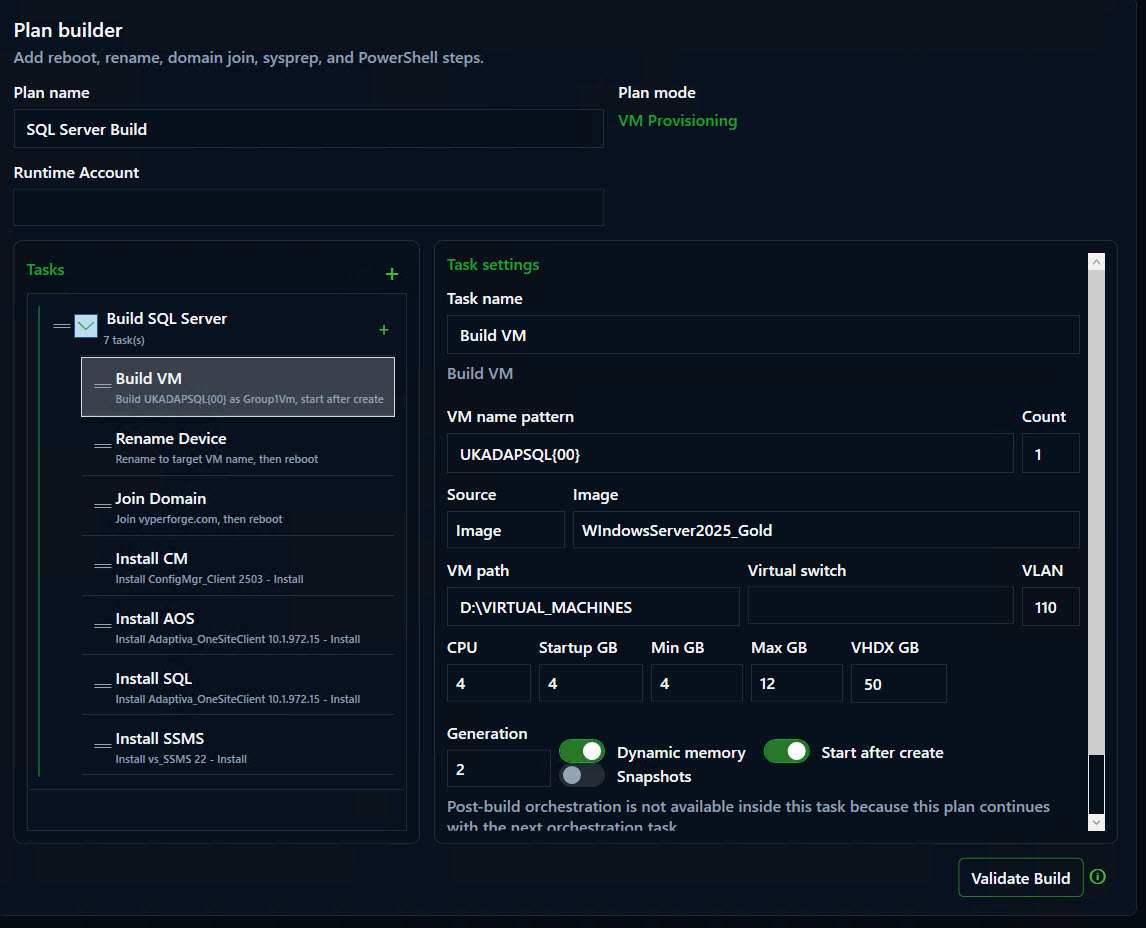
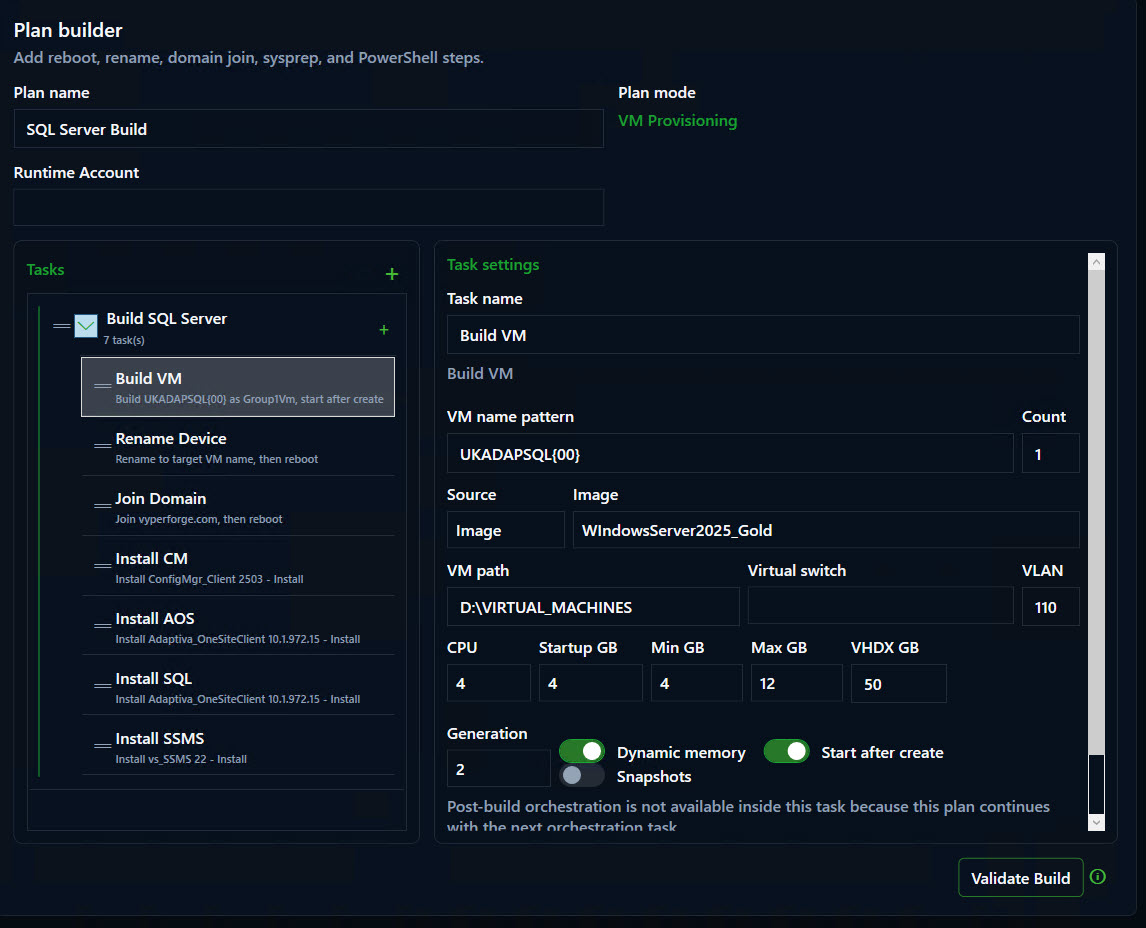
VyperForge screenshot: Orchestration plan editor. Build VM, rename, join domain, reboot and deploy apps.
Orchestration plan editorBuild VM, rename, join domain, reboot and deploy apps.
VyperForge screenshot: Running orchestration plan. Completed, active and pending tasks with progress.
Running orchestration planCompleted, active and pending tasks with progress.
VyperForge screenshot: PowerShell task editor. PowerShell Direct scripts, variables and guest account selection.
PowerShell task editorPowerShell Direct scripts, variables and guest account selection.
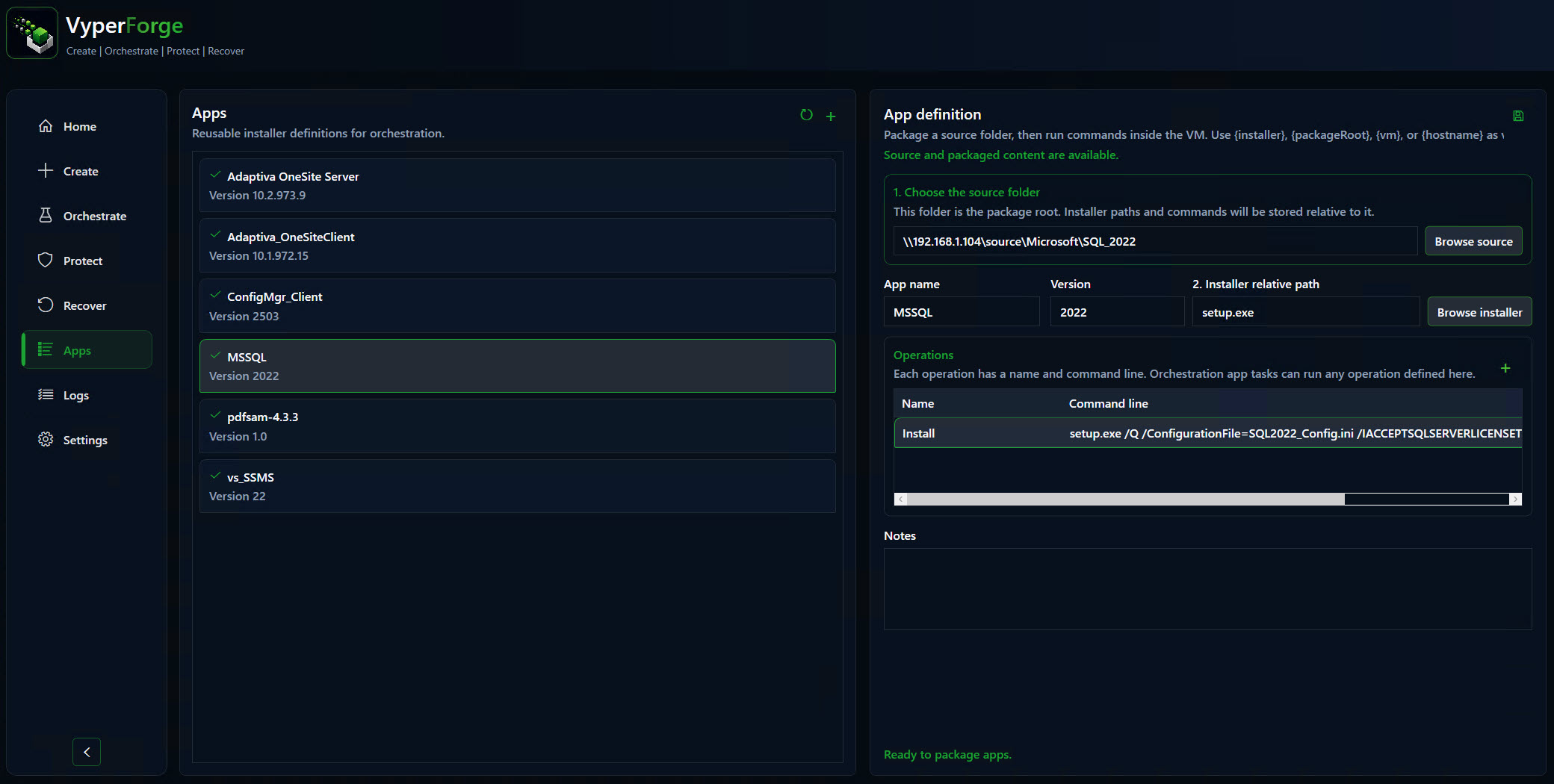
VyperForge screenshot: Application catalogue. Install and uninstall operations with source health.
Application catalogueInstall and uninstall operations with source health.

Why VyperForge?

Practical advantages over native tools and loose scripts.

  • Visual workflows instead of disconnected scripts.
  • PowerShell Direct before guest networking is ready.
  • Reusable task groups and nested plans.
  • Progress and failure reporting during execution.
  • ConfigMgr and domain steps can be part of the same plan.

Example scenario

A practical way to use it.

A support team can provision a clean server, install dependencies, apply configuration and run validation scripts as one visible workflow.

Real-world examples

Where this helps.

  • Build a ConfigMgr lab and add clients to the correct collections.
  • Install a standard application set after Windows deployment.
  • Rename, domain join and reboot several new VMs in order.
  • Run validation scripts before handing an environment to testers.

Related platform areas